Showing posts with label Technology in the Classroom. Show all posts

Monday, November 9, 2015

DOK Article (Alice Keeler) shared by John Sedwick

John shared this article this week. It is not just about DOK (Depth of Knowledge), but about maximizing technology in a way that encourages a better utilization of DOK.

Here is the link to the article.


Sunday, April 19, 2015

Web 2.0 Sites

Here are some Web 2.0 sites and what they can do.

Kahoot - Sign up for a FREE account to give quizzes in a game-like setting.

Quizlet - Simple tools that help you study anything.

Weebly - Create a FREE website.

Classflow - Allows live communication between teacher and devices.

Padlet - Communicate via a bulletin board-type board.

Today's Meet - Allows live feedback during instruction.

Sumo Paint - On-line image editor

Time Toast - Create time lines on line

Chogger - Make and share comic strips

Khan Academy - Instructional videos on many topics

And here is a site with even more...cool 2.0 tools.

Here is a symbaloo page that has a lot of resources. Haven't checked them all out yet, but they all come highly recommended.

Saturday, April 11, 2015

9 Tutorials on Chromebook

Okay, I found this on Pinterest. Yes, I use Pinterest, but only for work, I promise.

One thing that I did not like about Chromebooks was the fact that there was no caps lock. Apparently, I was wrong. And did you know there is also a delete function? Me neither, until today.

So much to learn!


Here is the link to the site I found.

Friday, April 10, 2015

Socrative

Like Kahoot, Socrative is an interactive tool that can be used for formative or summative assessment. You can set up quizzes or have students interact with you. Socrative accounts are FREE, and free is good. You can go to their website for a quick tutorial video.


Friday, March 13, 2015

Great Tech Site - When deciding on media use

This site allows you to search a variety of types of media...

to determine if it is appropriate for classroom use on a variety of levels...

It also includes a brief summary.


Great tool when there are so many resources out there!

Wednesday, March 11, 2015

Technology Resources

I have added a new topic to the list of resources at the right side of the blog. It is titled "Technology Resources." For now, I will leave it at the top of the page so people will know it is there.

This is a resource for all things related to technology, a must with HMS going 1:1 next year. I am also posting links to the resources already blogged about using the labels.

And as we move on to a deeper use of technology, let us understand that we are not the first to delve into a new and exciting time of change in technology...that transition from scrolls to books was apparently killer too.


Tuesday, March 10, 2015

Smart Board Tip - Random Name Generator

The Smart Board has a built in random word generator that you can set up to pick random names in your classroom. 

To access this feature, first go to your gallery. 3 ways to get there. 1. Press Alt + 2 keys at same time. 2. Go to the toolbar, click on "View." From the drop down menu, select "Gallery." 3.  From side toolbar, click on the icon for "Gallery."

Once you are at the gallery, type "Random Word Chooser" into the search bar.

After hitting enter, click the arrow that says "Interactive and Multimedia." When the "Random Word Chooser" comes up, drag and drop it onto your Smart Board.

From here, you can now set it up for your class. First, choose the number of names you will be using. You can set up different Random Name Choosers for different classes, or for groups within a class.


Then, type in the names you want to use. Once you have this set for your class, then save the file with a name such as "Random Chooser Period 1." Next, just open this notebook and you can quickly tab over to it to choose a name, then tab back to the Smart Board or any other program you are using.


Tip: If you do not want the Random Name Generator to pick a name until all names have been chosen, click the box in the lower left-hand corner. Unchecking this box will start the process over.


Sunday, February 22, 2015

SmartBoard Tips


 Want to expand your Smart Board skills? Then check out this post.CLICK HERE

You will find 22 basic tips, several of which were new to me. I love what you can do with the "Magic Pen." (Timer, focus, or magnifier) Also new to me was the "Pin" button for use with split screens. (No, it has nothing to do with Pinterest).

If you use a Smart Board, this site is worth your time!


Friday, October 24, 2014

Additional Technology Enhanced sites

These are from Kelly's e-mail.

http://practice.parcc.testnav.com/#

Be sure to click on the "Sample Items" tab, then choose 6-8 ELa or Math set.


http://sbac.portal.airast.org/practice-test/

Click on "Student Interface Practice and Training Tests," then enter the grade level you desire, then choose which test you want to try.


It is critical that we give our students as much exposure to this format of questions as possible. Consider using computer lab time as well as using your Smartboard to do these types of questions.

Don't forget about the other site (CTB) that can be found here.

Wednesday, October 8, 2014

Don't Lose this Site! CCRA Preview.

As we all know, things are changing for this years ISTEP assessment. Even the format of the test is changing. In order to prepare your students for these changes, this site has been provided. It will expose your students to all of the new question formats that ISTEP will be using. And that is something you definitely want to do. And more than once!


Here is the link to the site.

As you can see below, this site include BOTH Math and ELa.


 This would be a great Bell Ringer activity if you have a Smart Board. But students need to practice this on a computer in the labs as well.

A few more of the changes that were mentioned at the DOE Meeting...
  • Students will still have tools, but no more icons telling them when to use them. They will have to know they are there and decide which tool they need for a given question. (This change was implemented because of SMP 5,  "Use appropriate tools strategically.")
  • Fluency items added for Mathematics (takes place in Part 2 window)
  • In equations and expressions, students will have to define the variables ON THEIR OWN

Monday, April 21, 2014

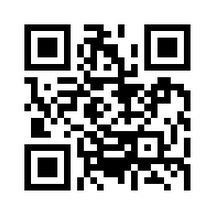
QR Codes

You can create your own QR (Quick Response) Codes. These codes have many uses, one of which is the ability to quickly link to websites.

Here is the QR Code for this blog...


It was created here.

Tuesday, October 8, 2013

Site of the Week - Math Is Power 4 U

This site was shared with me by Mrs. Freeman over at Edgewood (5th Grade). She said she uses it a lot. It covers topics from pre-algebra to calculus! So it should be a great tool for a Middle School!

Click here or on the pic to go to the site.


Here is a link to their blog.

Here is a link to their YouTube channel.

Tuesday, October 1, 2013

Site of the Week - Learn Zillion

You can find a lesson (or more) on any given standard, Math and Language Arts.. Once you sign up (and signing up is free) you can search by grade, domain, and standard. Or you can just type in a topic in the search bar. For instance, if you type in Absolute Value, you might find this video.


Once you have gotten to the page with the video, you can also view the slides the video was created from, comments from the video's creator, see some guided practice questions, and more.

These videos could be part of a Success Time lesson, viewed in the computer lab, set up for a sub.

Monday, September 2, 2013

Tuesday, August 27, 2013

Reading/Writing ideas!

Here is a PDF copy of the information Eric shared in his e-mail today.


Some of the "Big Ideas"
  • Teaching Constructed Response Writing (Important as we move toward Common Core)
  • Organizing a classroom library
  • Accessing Reader Thinking
  • Making Connections in Reading
  • Socializing with Teachers
  • Close Reading in a technical text
  • Infusing I-Pads in the classroom